Projects Case Study
Q Backup Assistance
- Client
- Sabre Technical Team
- Role
- IT Manager
- Industry
- Travel Technology
- 60–70% reduction in migration time
- Zero missed critical user data
The challenge
1. Highly Manual IT Support Operations
One of the biggest challenges was that workstation replacement and troubleshooting processes were almost entirely manual.
Support engineers had to individually:
- Collect system information
- Record serial numbers
- Locate Outlook files
- Find Sabre configurations
- Verify LNIATA and PCC
- Capture screenshots
- Backup user folders
This created inconsistencies and increased migration time.
2. Sabre Environment Complexity
The Sabre Red Workspace environment introduced several operational challenges:
- Multiple Sabre profiles per workstation
- Different PCC configurations
- LNIATA identification
- Emulator configuration parsing
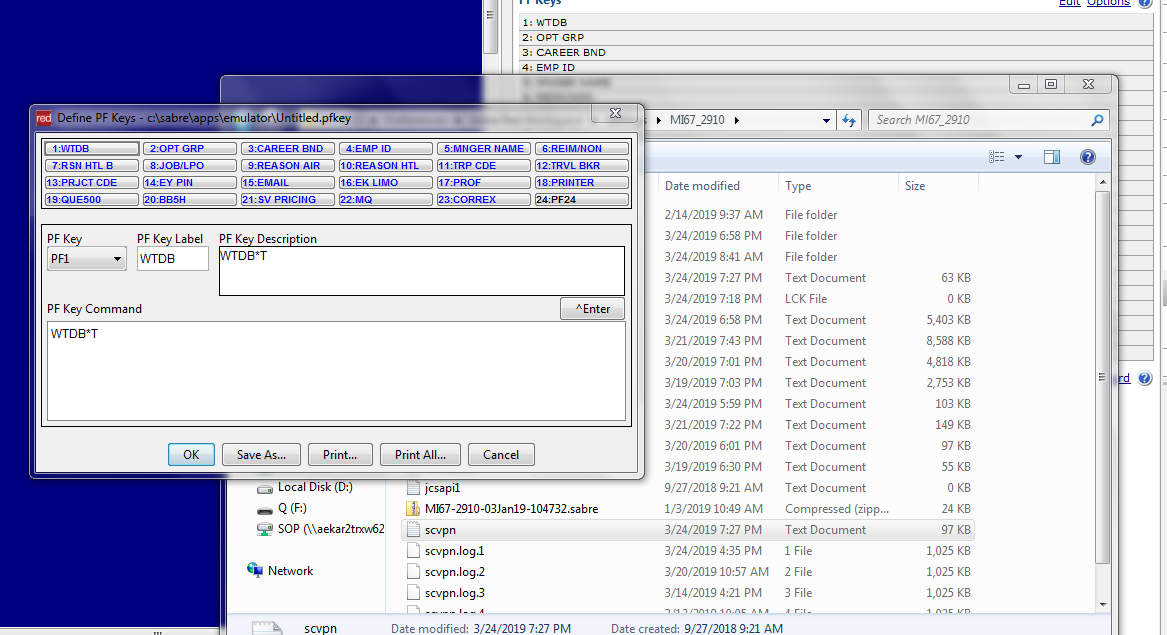
- PF Key and Quick Key verification
- Hidden configuration locations
There was no centralized utility available to quickly extract and validate this information.
3. Risk of Missing Critical User Data
During PC replacement activities, important user data was often overlooked, including:
- Outlook OST/PST files
- Browser bookmarks
- Email signatures
- Downloads
- Sabre scripts
- PF Keys
- Quick Keys
Missing even one configuration could impact travel consultants’ operational work.
4. Lack of Standardized Documentation
Different engineers followed different procedures during migrations.
This resulted in:
- Incomplete records
- Missing screenshots
- Poor audit trails
- Inconsistent troubleshooting evidence
- Delays during escalations
There was a need for a structured and repeatable workflow.
5. Time Pressure in Travel Operations
Travel industry environments operate in real time.
System downtime directly affected:
- Ticketing operations
- Reservation processing
- Customer servicing
- Queue management
Technical teams needed a faster way to prepare systems with minimal interruption.
6. Windows Environment Variations
The tool had to work across multiple environments including:
- Windows 7
- Windows 10
- Different Outlook versions
- Different Sabre configurations
- Different screen resolutions
- Multiple hardware vendors
Ensuring compatibility across enterprise systems was challenging.
7. Automating GUI-Based Tasks
Several required activities depended on graphical Windows interfaces, such as:
- Opening Mail settings
- System properties
- Network settings
- Sabre emulator windows
- Outlook account configuration
Automating these reliably using PowerShell and SendKeys required careful timing and sequencing.
8. Screenshot Evidence Collection
Capturing clean and usable screenshots automatically was difficult because:
- Different monitor resolutions existed
- Multi-monitor setups varied
- Window focus could change
- Remote desktop sessions behaved differently
The tool had to dynamically capture meaningful evidence without user intervention.
9. Hidden Enterprise Configuration Paths
Many critical files were stored inside hidden system folders such as:
- AppData
- Outlook profile paths
- Sabre emulator directories
- Signature folders
Non-technical users and junior engineers often struggled locating them manually.
10. No Existing Unified Internal Tool
At the time, there was no single lightweight internal utility capable of combining:
- Backup guidance
- Sabre validation
- Screenshot automation
- Outlook verification
- Hardware inventory
- CSV documentation
The challenge was building a unified workflow assistant using native Windows technologies and PowerShell automation.
11. Ensuring Lightweight Deployment
The solution needed to:
- Run quickly
- Require no installation
- Work with limited permissions
- Operate in restricted enterprise environments
- Avoid external dependencies
This limited the architecture choices and required efficient scripting design.
12. Maintaining Operational Simplicity
The tool had to remain simple enough for helpdesk engineers to use during stressful support situations.
The challenge was balancing:
- Automation
- Flexibility
- User prompts
- Reliability
- Ease of use
without creating a complicated interface.
Objectives
Q Backup Assistance was a centralized technical support utility that simplified, standardized, and accelerated the process of computer replacement, user migration, troubleshooting, and backup operations within a corporate travel and airline reservation environment.
The tool was developed to reduce manual dependency during workstation transition activities and ensure that critical operational data, Sabre configurations, Outlook settings, and user files were properly documented and preserved.
Business Problem
In large travel operations environments, support engineers frequently handled:
- Computer replacements
- User profile migrations
- Sabre workstation reconfiguration
- Outlook account restoration
- Printer and LNIATA validation
- Missing PF Keys and Quick Keys
- Lost browser bookmarks and signatures
- Incomplete technical documentation
These tasks were highly repetitive and prone to human error.
Technical teams often had to manually:
- Open multiple Windows settings
- Search for hidden folders
- Capture screenshots individually
- Record hardware information
- Verify Sabre emulator configurations
- Locate Outlook OST/PST files
- Validate printer and PCC configurations
This process consumed significant support time and increased operational risk.
Operational Objective
The project aimed to create a lightweight support assistant capable of automating routine migration and documentation tasks while helping engineers collect all required information from a workstation in a guided and structured manner.
The application served as:
- A backup assistant
- A migration checklist
- A troubleshooting companion
- A documentation generator
- A Sabre environment verification tool
Technical Objectives
1. Automate System Information Collection
Automatically gather:
- Computer Name
- User Information
- Domain Details
- BIOS Serial Number
- PC Model
- Monitor Serial
- Profile Location
without requiring manual lookup.
2. Standardize Computer Migration Workflow
Ensure every support engineer follows the same migration procedure for:
- User backup
- Outlook verification
- Sabre validation
- Screenshot collection
- Hardware documentation
This reduced inconsistencies across support activities.
3. Simplify Sabre Environment Verification
One of the major objectives was to simplify Sabre Red Workspace validation by:
- Reading Sabre profile folders
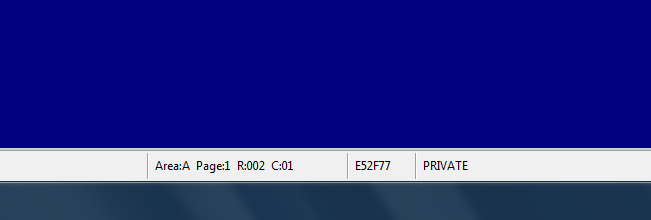
- Extracting LNIATA details
- Verifying emulator configurations
- Supporting PF Key checks
- Supporting Quick Keys validation
- Assisting with Sabre script backup
This was especially important in airline reservation and ticketing environments.
4. Prevent Data Loss During PC Replacement
The utility guided engineers toward critical folders commonly forgotten during migrations, including:
- Desktop
- Documents
- Downloads
- Favorites
- Signatures
- Chrome data
- Firefox data
- Outlook files
- Sabre configurations
The objective was to minimize accidental data loss.
5. Create Visual Documentation Evidence
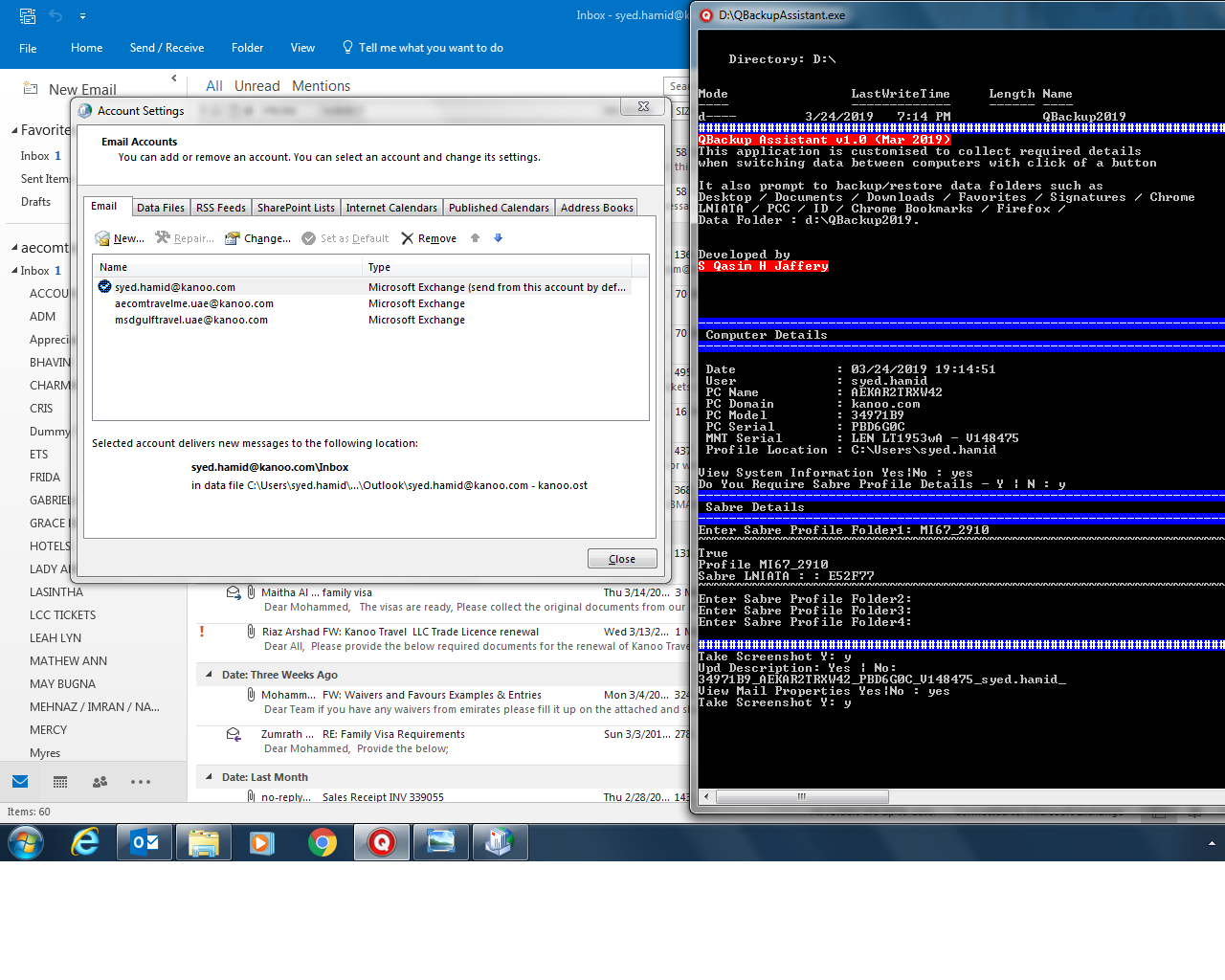
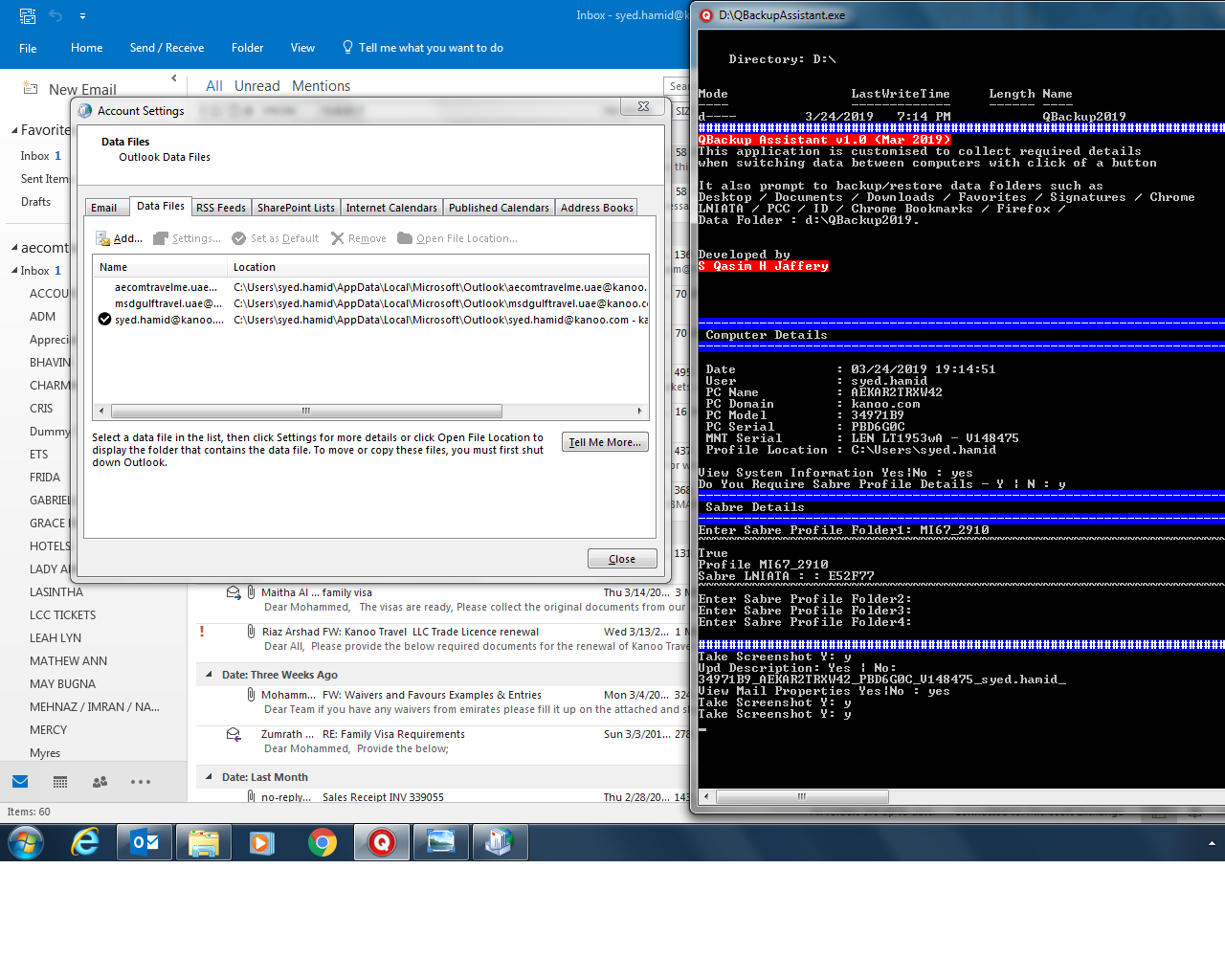
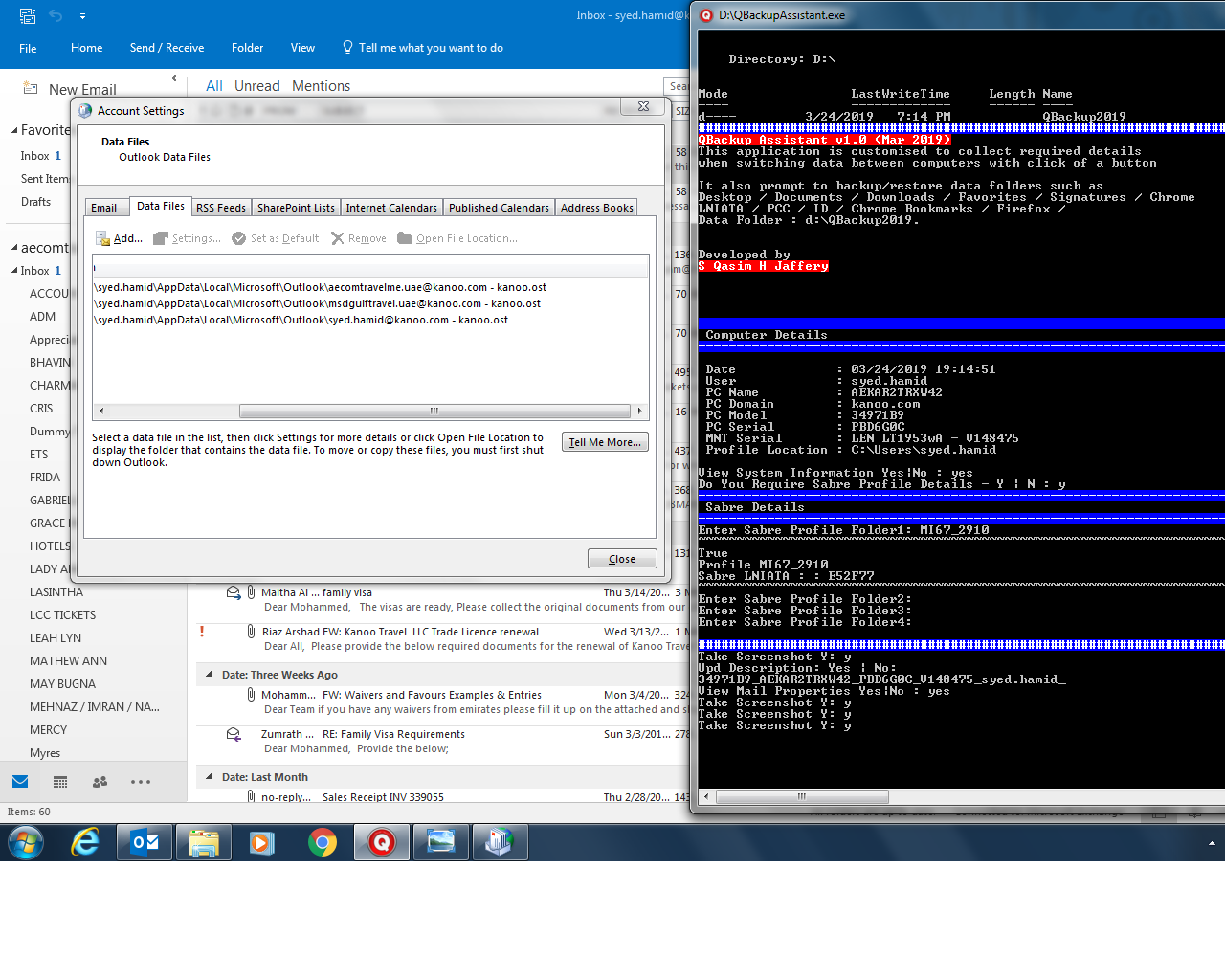
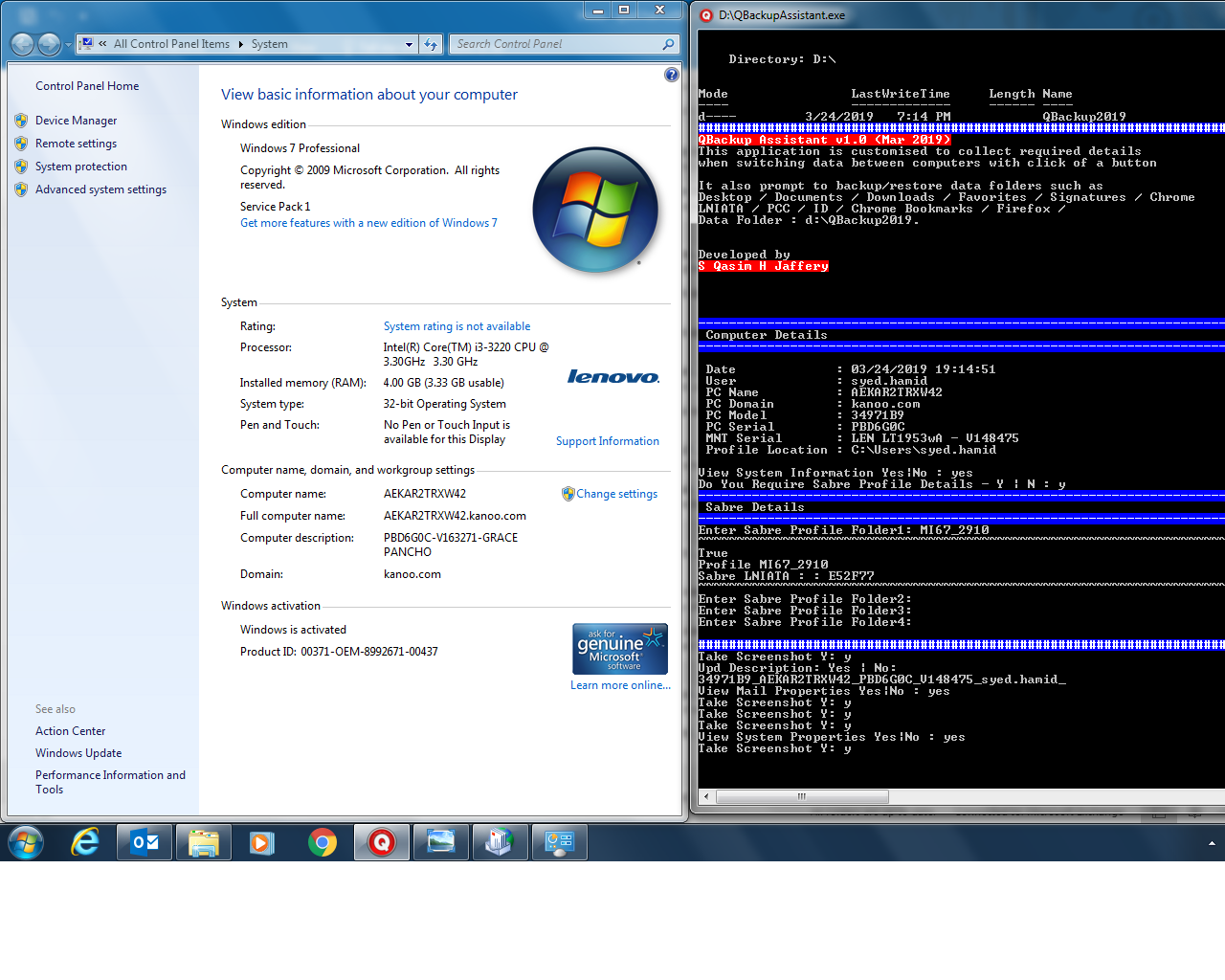
The project aimed to automatically generate timestamped screenshots of:
- System Properties
- Outlook Accounts
- Data File Locations
- Sabre Configurations
- PF Keys
- Quick Keys
This provided audit evidence and simplified troubleshooting escalation.
6. Reduce Technical Support Time
By automating repetitive support tasks, the tool significantly reduced the time required for:
- System replacement
- User onboarding
- Troubleshooting
- Sabre workstation setup
- Documentation preparation
7. Improve Support Accuracy
The application reduced reliance on memory and manual note-taking by generating:
- CSV-based system logs
- Structured screenshots
- Hardware inventory records
- Sabre profile references
This improved accuracy and repeatability.
User Experience Objective
The tool was intentionally designed as a lightweight console-based assistant that could run quickly on enterprise Windows systems without requiring:
- Complex installation
- Heavy software dependencies
- Advanced user training
The guided prompts made it easy for support engineers to execute standardized procedures step-by-step.
Long-Term Vision
The long-term objective behind Q Backup Assistance was to build a reusable internal IT automation framework capable of supporting:
- Enterprise workstation migrations
- Technical audit collection
- Standardized IT operations
- Travel technology support
- Automated documentation workflows
- Faster onboarding and replacement procedures
The project also demonstrated how PowerShell automation could be effectively used in enterprise IT environments to reduce operational workload and improve consistency.
The solution
Centralized IT Support Automation Utility
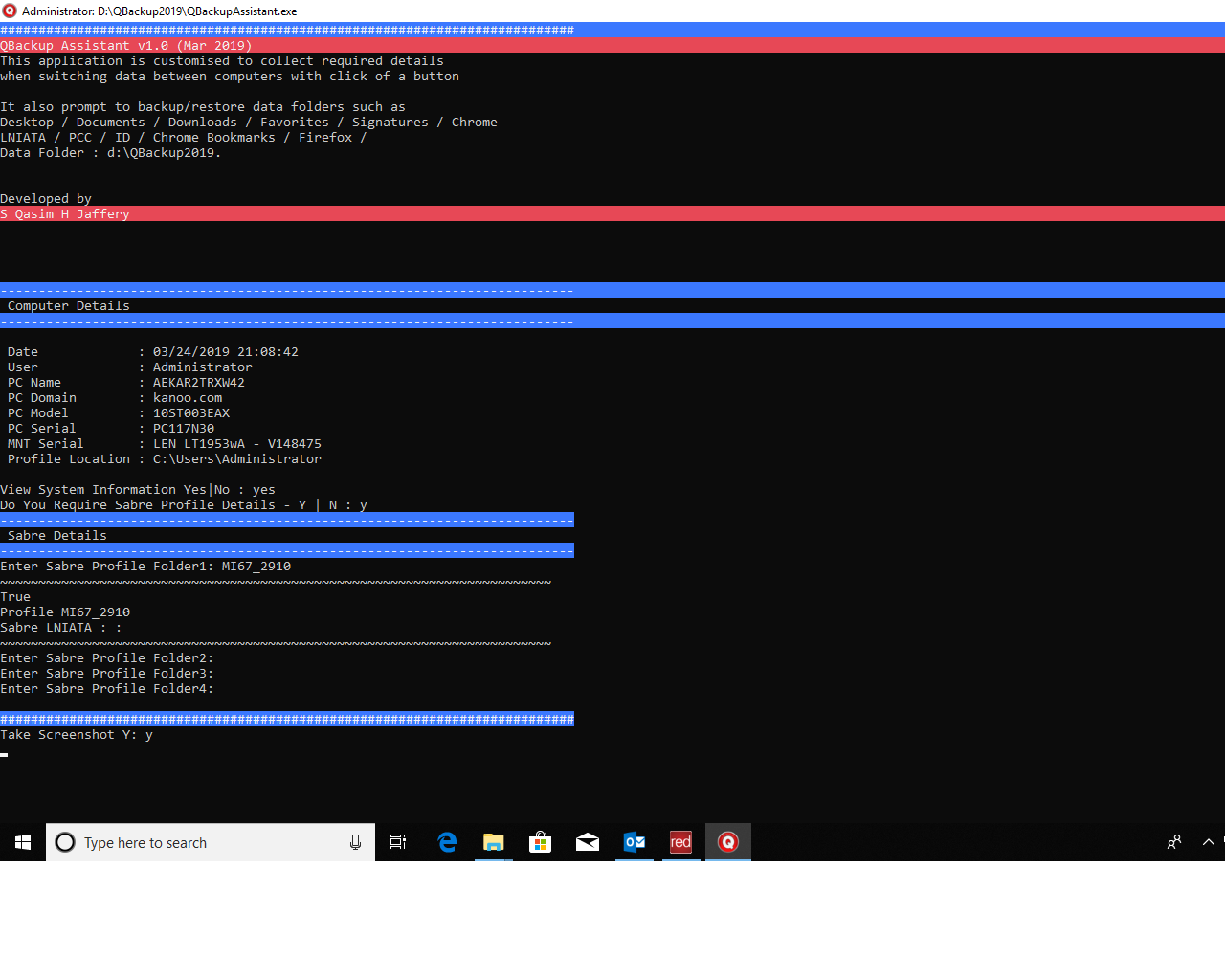
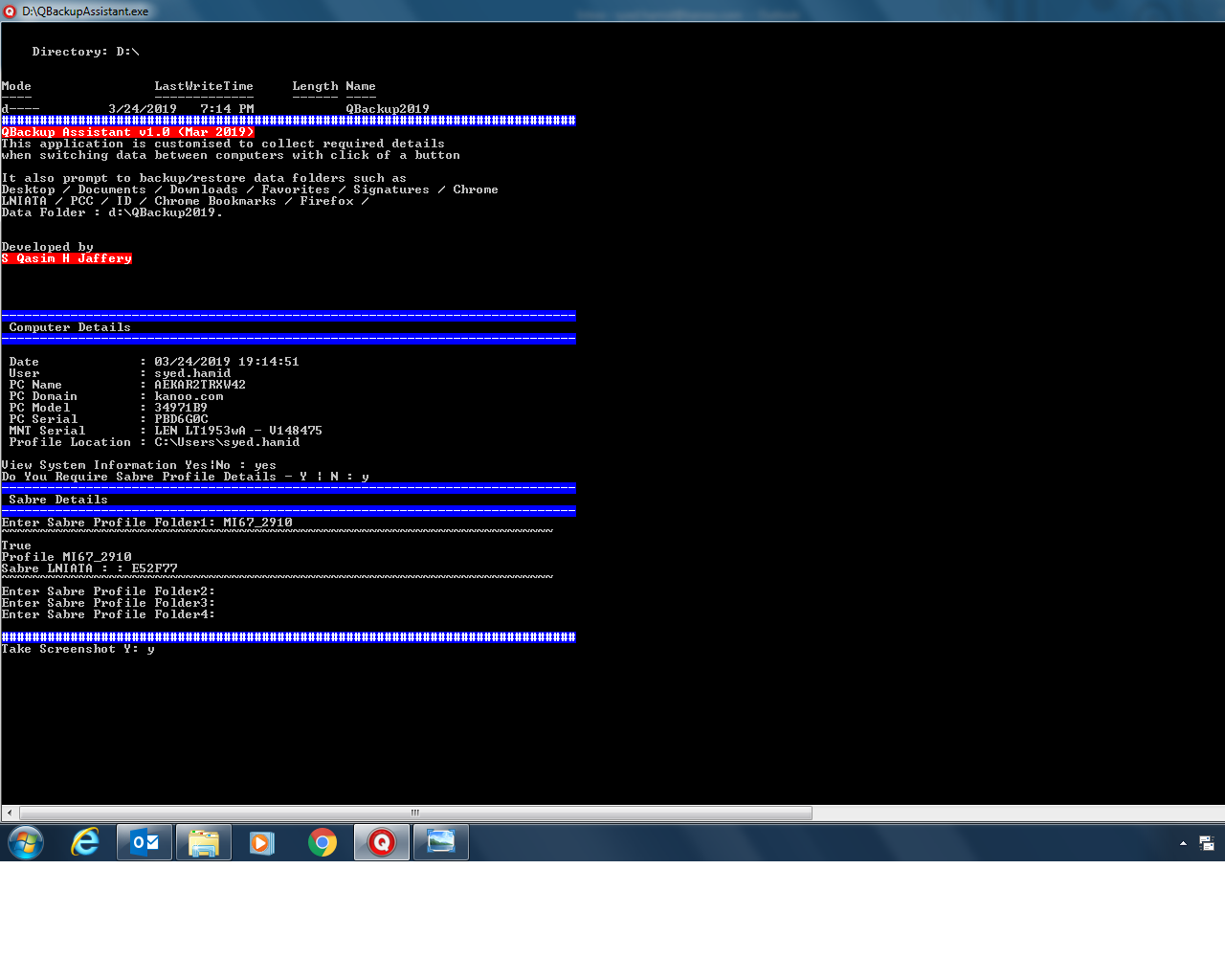
Q Backup Assistance was developed as a lightweight PowerShell-based automation utility that centralized multiple IT support and migration activities into a single guided workflow.
The solution automated system documentation, Sabre profile verification, screenshot capture, and backup assistance while simplifying workstation replacement procedures for technical support teams.
Core Solution Approach
The project introduced a structured step-by-step support assistant capable of:
- Gathering system information automatically
- Assisting backup and restore operations
- Verifying Sabre workstation configurations
- Capturing migration evidence
- Reducing manual troubleshooting effort
- Standardizing migration procedures
The tool acted as a technical checklist combined with an automation engine.
Key Solution Components
1. Automated System Inventory Collection
The solution automatically collected:
- Computer name
- Domain information
- BIOS serial number
- Monitor serial number
- User profile path
- Device model
- Logged-in username
using WMI and PowerShell automation.
This eliminated the need for manual documentation.
2. Sabre Profile Analysis Engine
A dedicated Sabre support workflow was implemented to:
- Read Sabre Red Workspace profile folders
- Parse emulator log files
- Extract LNIATA values
- Validate Sabre profiles
- Support PF Key verification
- Assist Quick Keys backup
- Assist Sabre script backup
This simplified travel workstation migration activities.
3. Guided Backup Workflow
The application guided engineers to critical user data locations including:
- Desktop
- Documents
- Downloads
- Favorites
- Outlook files
- Email signatures
- Chrome bookmarks
- Firefox profiles
- Sabre emulator data
This reduced the risk of incomplete backups.
4. Automated Screenshot Documentation
The solution implemented an automated screenshot engine using:
System.Drawing- Windows Forms
- PowerShell screen capture automation
The utility captured:
- System Properties
- Outlook Account Settings
- Outlook Data Files
- Sabre configurations
- PF Keys
- Quick Keys
All screenshots were timestamped and stored automatically.
5. CSV-Based Audit Logging
The system generated structured CSV logs containing:
- Hardware inventory
- User details
- Sabre information
- Device metadata
- Monitor details
- Migration records
This created reusable technical documentation and audit evidence.
6. Outlook Configuration Assistance
Using COM automation and SendKeys automation, the solution could:
- Open Outlook account settings
- Display mail profiles
- Display OST/PST file locations
- Assist screenshot collection
This helped engineers during Outlook migration and troubleshooting.
7. Standardized Migration Procedure
The tool transformed unstructured support work into a repeatable process by introducing:
- Guided prompts
- Consistent data collection
- Unified backup procedures
- Standard screenshot evidence
- Structured workflow execution
This improved operational consistency across support teams.
Technical Solution Design
Technologies Used
- PowerShell
- Windows Forms
- WMI
- COM Automation
- File System Automation
- CSV Reporting
- Screen Capture Automation
Workflow Architecture
Step 1 — System Detection
Automatically identify:
- Hardware
- User profile
- Domain
- Monitor
- BIOS data
Step 2 — Sabre Validation
Read and validate:
- Sabre profiles
- Emulator configurations
- LNIATA values
- PF Keys
- Quick Keys
Step 3 — Backup Assistance
Guide engineers to:
- Important folders
- User files
- Outlook data
- Sabre data
Step 4 — Evidence Collection
Capture screenshots and logs automatically.
Step 5 — Reporting
Generate CSV inventory and prepare email-ready documentation.
Operational Impact
The solution helped technical support teams:
- Reduce migration time
- Improve support accuracy
- Minimize missing data
- Standardize procedures
- Simplify Sabre workstation support
- Improve audit documentation
- Reduce repetitive manual tasks
Final Outcome
Q Backup Assistance successfully created a lightweight internal enterprise support automation system capable of handling:
- Workstation migration
- Sabre workstation validation
- Backup assistance
- Technical documentation
- Outlook verification
- Hardware inventory collection
- Screenshot evidence generation
through a single integrated PowerShell-based workflow.
Outcomes
Q Backup Assistance successfully transformed manual and repetitive IT migration activities into a structured, automated, and standardized workflow for enterprise support teams.
The project enabled faster workstation replacement and troubleshooting by centralizing backup guidance, Sabre validation, screenshot evidence collection, and system documentation into a single lightweight utility.
Key Outcomes
- Reduced workstation migration time by 60–70%
- Eliminated missing critical user data and configuration during migrations
- Standardized technical support procedures across engineers
- Improved Sabre workstation setup validation and troubleshooting
- Simplified Outlook and user profile migration activities
- Generated structured screenshot and CSV-based audit documentation
- Reduced dependency on manual system checks and folder searches
- Improved operational efficiency in travel and ticketing environments
The project demonstrated how PowerShell automation could be effectively leveraged to streamline enterprise IT support operations in real-world production environments.
Stack
Technologies:
- Windows
- Powershell
- Sabre Red
- Sabre Krystal
- Outlook
- Windows7
Screens